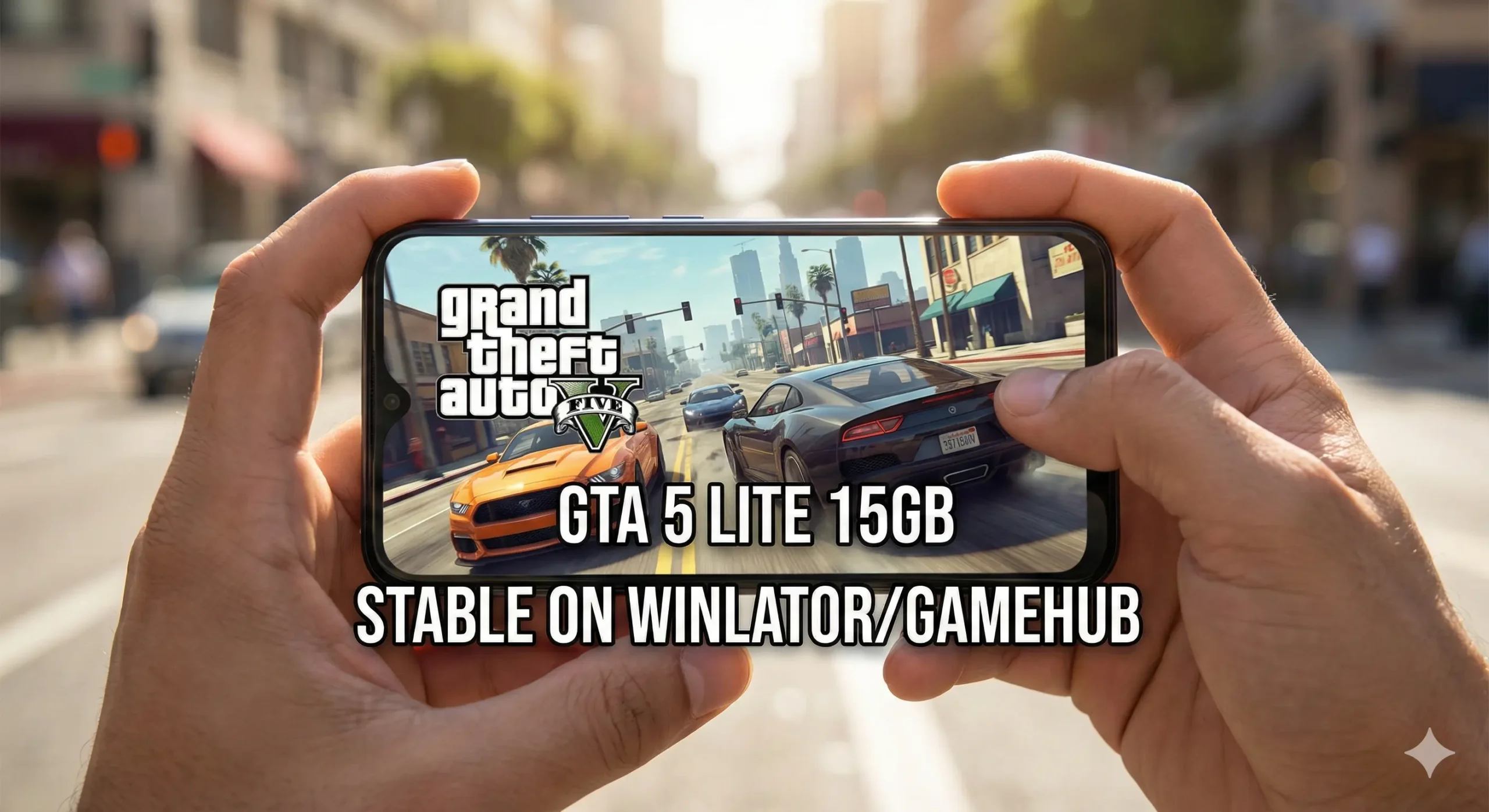
Are you trying to run Grand Theft Auto V on your mobile phone but struggling with storage space or lagging gameplay? You are not alone. Many gamers want to experience Los Santos on Android, but the original PC game is over 100GB, which is too big for most phones.
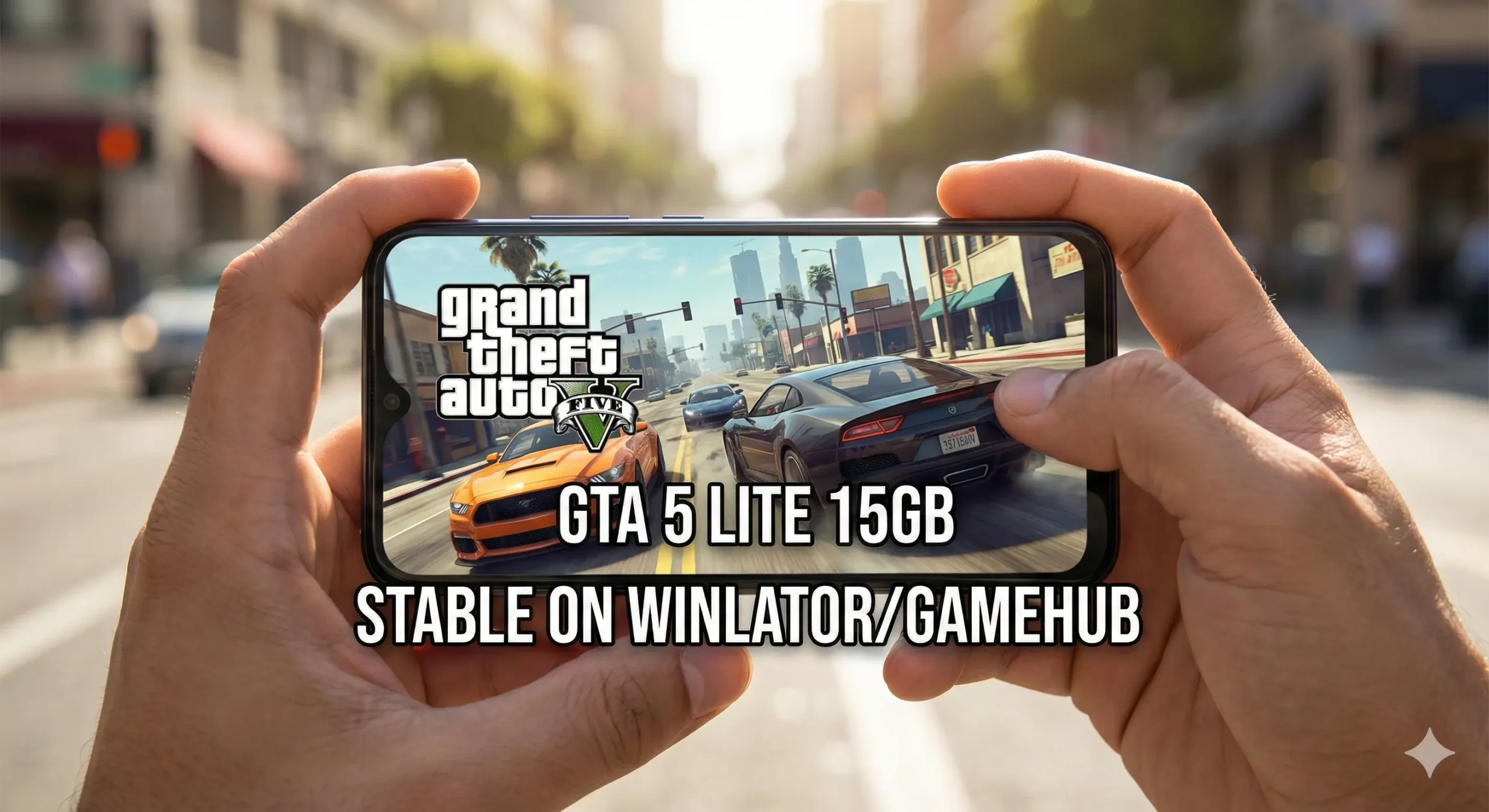
The solution is the new GTA 5 Lite (15GB) Stable Version.
In this guide, we will show you exactly how to set up this highly compressed version of GTA 5 using PC emulators like Winlator or Gamehub. We have tested this method to ensure it works on low-end devices (6GB RAM) without crashing.
What is the GTA 5 Lite (15GB) Version?
Before we start the installation, it is important to understand what you are downloading. The “Lite” or “RIP” version is a modified version of the PC game designed specifically for emulation on Android.
- Highly Compressed: The size is reduced from 100GB+ to just 15GB.
- Stable Gameplay: It is optimized to stop the game from closing unexpectedly (crashing).
- Open World Only: To save space, Story Mode missions and cutscenes are removed. You cannot play the missions, but you can explore the full map, drive cars, and enjoy the open-world sandbox.
- No Audio: In most 15GB versions, game audio (radio and dialogue) is removed to reduce the file size.
Experience Note: If you want to play the full story with Michael, Trevor, and Franklin, you need the full version. If you just want to have fun driving and exploring on your phone, this 15GB version is perfect for you.
Minimum System Requirements for Android
To run PC games on Android smoothly, your phone needs to meet these requirements:
- Processor (CPU): Snapdragon 860, 870, 8 Gen 1, or higher is recommended for the best speed. (MediaTek processors work but may have lower FPS).
- RAM: Minimum 6GB RAM (8GB or higher is better).
- Storage: At least 20GB free space.
- Emulator: The latest version of Winlator or Gamehub.
- Game Files: GTA 5 Lite (15GB) Setup files.
Step-by-Step Installation Guide
Follow these steps carefully. Skipping a step—especially the configuration part—will cause the game to crash immediately.
Step 1: Download and Extract Files
First, you need to download the GTA 5 Lite game files. Since these are PC files, they will likely come in a ZIP or RAR format. Use an app like ZArchiver to extract them into a folder on your phone where you can easily find them.
Step 2: Configure the Emulator (Container Setup)
Open your emulator (Winlator or Gamehub) and create a new “Container”. This acts like a virtual Windows computer inside your phone.
- Screen Size: Set the resolution to 1280×720 (720p). This offers the best balance between good graphics and smooth performance.
- Graphics Driver:
- For Snapdragon Users: Select Turnip + Zink. This driver is the fastest for Snapdragon chips.
- For MediaTek/Mali Users: Select VirGL. You must also enable “Mali Fix” in the settings if available.
Step 3: The Secret “DXVK Config” Fix (Important)
This is the most critical step to prevent crashes.
- Download the DXVK Config file (often shared as a small zip file).
- Extract it and move the config file (usually named
dxvk.conf) to your phone’s Root Directory (the main storage area, outside of any folders). - Go to your Emulator settings and find Environment Variables.
- Add a new variable:
- Name:
DXVK_CONFIG_FILE - Value:
Z:/sdcard/dxvk.conf(This tells the emulator exactly where to find the fix).
- Name:
This file helps the emulator handle graphics shaders properly so the game doesn’t freeze when loading new areas.
Step 4: Install the Save Game File
Since this “Lite” version has no story missions, the game will crash if you try to start a “New Game” (because the opening mission is missing). You must install a Save File to skip the intro.
- Download a GTA 5 100% Save File or a “Prologue Skipped” save file.
- Open the Emulator and use its file manager to go to the
C: Drive. - Navigate to this path:
C:\ProgramData\Socialclub\RLD!ORC:\Users\user\Documents\Rockstar Games\GTA V\Profiles - Paste your save files here.
Now, when you launch the game, it will load directly into the city with Franklin or Michael, bypassing the broken missions.
Step 5: Fix Controller Issues
If your on-screen touch controls are not working, you need to add a specific library file.
- Go to the Container Settings.
- Go to the Advanced or Wine Configuration tab.
- Go to Libraries.
- Type
dinput8in the “New override” box and click Add. - Make sure it is set to “Native then Builtin”.
Expert Tips for Smooth Gameplay (High FPS)
If the game feels slow or “laggy,” try these expert adjustments:
- Lower Resolution: Change the resolution in the container settings to 800×600. It looks surprisingly good on a small phone screen and boosts speed significantly.
- Simulate Block Transfer: In the emulator’s advanced settings, check the box for “Simulate Block Transfer.” This fixes graphical glitches where textures turn black or disappear.
- Phone Cooler: Running PC games generates a lot of heat. Remove your phone case or play in a cool room to prevent your phone from slowing down (throttling).
Conclusion
Playing GTA 5 Lite on Android is now a reality thanks to powerful tools like Winlator and Gamehub. While this 15GB version doesn’t offer the full story campaign, it provides the full open-world experience that fans love. By following the steps above—especially the DXVK config and Save Game trick—you can turn your Android device into a portable PC gaming machine.
Disclaimer: This guide is for educational purposes. We recommend owning the original game on PC before using emulated versions.